















If you’re the admin of a busy Telegram group, you know how quickly chats can get out of hand. Important messages get buried, different topics mix together, and chats become difficult to follow. Fortunately, Telegram introduced Topics to solve this problem. When you create topics in a Telegram group, you can organize conversations based on different subjects.
In this article, you’ll learn how to create Telegram topics, why topic-based groups are useful, and what to do if Telegram topics are not available for your group.
What Is a Telegram Group Topic?
A Telegram group topic is a feature that helps admins organize conversations. Instead of having every message appear in one long chat, each topic gets its own space. Members can join the topic they need and discuss that specific subject without interrupting other conversations.
For example, if you run a math learning group, you could create topics like the following:
- Questions & Answers
- Announcements
- Homework
- Student Support
- General Discussion
How to “Enable” Topics in a Telegram Group
Before you can create topics in a Telegram group, you first need to turn on the Topics feature.
On Mobile
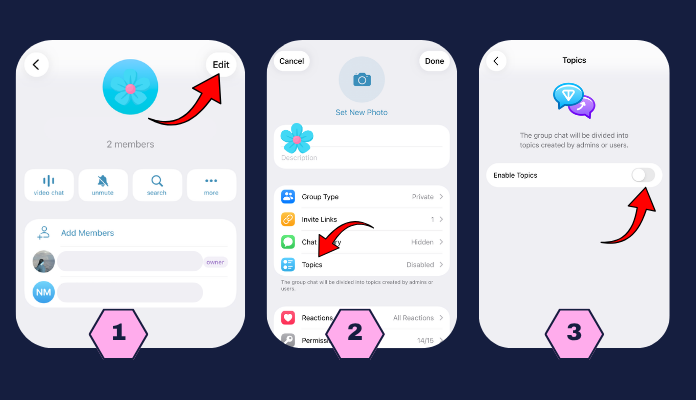
If you’re using the Telegram app on your phone, follow these steps:
- Open the Telegram group and tap the group name.
- Tap Edit.
- On the next screen, tap Topics.
- Turn on Enable Topics.
- Choose how you want topics to appear at the bottom of the page: Tabs or List.
- Save your changes.
Note: If you don’t see the Topics option, don’t worry. There are several reasons why Telegram topics are not available for some groups, and we’ll explain them later.
On Desktop
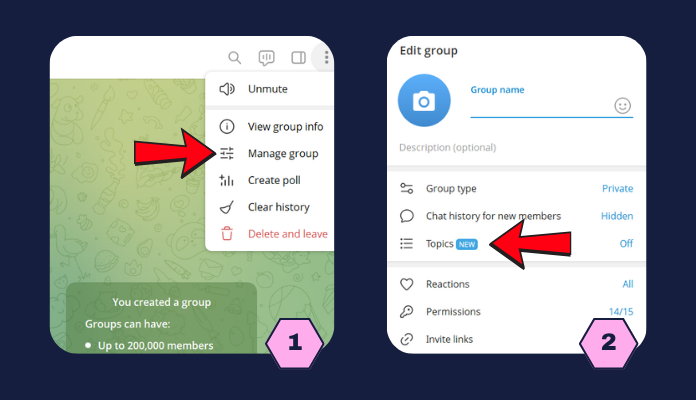
If you’re using Telegram on your computer:
- Open the Telegram group.
- Click the group name.
- Select Manage.
- Click Topics.
- Turn on Enable Topics.
- Choose your preferred layout: Tabs or List.
- Save the changes.
How to Create Telegram Topics on iPhone
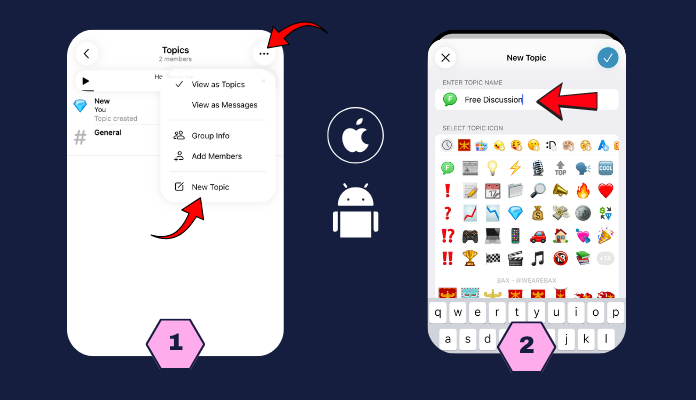
If you’re using an iPhone, here’s how to create topics:
- Make sure you’ve already enabled Topics using the steps above.
- Open the Telegram group. If Topics are enabled, your group already has different sections.
- Tap the three-dot menu in the top-right corner.
- Select New Topic.
- Write a name for your topic and choose an icon.
- Tap the blue checkmark to save it.
That’s it! Your new topic is ready, and group members can start chatting inside it.
How to Create Telegram Topics on Android
The steps to create topics in a Telegram group on Android are almost the same as on iPhone:
- Open your Telegram group.
- Tap the group name at the top of the screen.
- Go to the Topics section.
- Tap New Topic.
- Enter a name for your topic.
- Tap Create (the blue checkmark at the top).
Regular Telegram Groups vs. Topic-Based Groups
Many people ask, “What’s the difference between a normal Telegram group and a topic-based group?” or “Why should I create topics?” Here’s the answer.
Regular Telegram Groups
- All messages appear in one long conversation.
- Finding older messages can be difficult.
- In busy groups, important discussions quickly get buried.
- Managing conversations becomes more challenging.
Topic-Based Telegram Groups
- Each discussion has its own topic.
- Related conversations are much easier to find.
- Members can jump straight to the topics they’re interested in.
- The group stays organized and is much easier to manage.
- They are perfect for online courses, work teams, and large discussion groups.
Telegram Topics Not Available: Why Is That So?
Sometimes you won’t see the Topics option in your group setting. If you’re wondering why Telegram topics are not available, here are the most common reasons:
- You’re Using an Older Version of Telegram
Older versions of Telegram may not support the Topics feature. Update the app to the latest version and check again.
- You Don’t Have Admin Permissions
Only group admins can enable or disable Topics. If you’re a regular member, you’ll need an admin to turn the feature on.
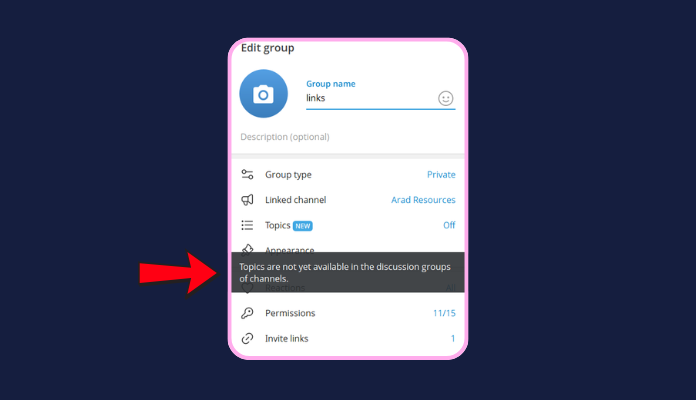
- Your Group Is Linked to a Channel
Topics can’t be enabled in Discussion Groups that are linked to a Telegram channel. [learn more about discussion groups]
If you’ve checked all of the above and still can’t find the Topics option, double-check your Telegram version or contact the Telegram support team.
Benefits of Using Telegram Group Topics
When you create topics in a Telegram group, you’ll see that managing conversations becomes much easier. Some of the biggest benefits include:
- Important messages are less likely to get lost.
- Members are more likely to join and stay active in discussions.
- Conversations stay organized by topic.
- Finding information is faster and easier.
- Members don’t get overwhelmed by one long, messy chat.
If you are the admin of a large Telegram group, you can also use a Telegram group management bot to keep everything even more organized. These bots work like virtual admins. They handle routine tasks automatically and help you manage your group better.
The Last Words
Topics are one of Telegram’s most useful features for group management. Once you learn how to create topics in a Telegram group, you can organize conversations into separate sections and enjoy a tidy group. This feature is especially valuable for online courses, work teams, support groups, and large communities where multiple discussions happen at the same time.
FAQs
Can every member create topics?
It depends on your group settings. Group owners and admins can choose who can create new topics. If you want to avoid chaos, it’s a good idea to let only admins create topics.
Can I delete a topic?
Yes. Group admins can delete or archive topics that are no longer needed. To do this:
+ Open the topic.
+ Tap or click the three-dot menu.
+ Choose Delete Topic or Close Topic.
Tip: If you only want to archive the topic instead of removing it permanently, choose Close Topic.
Can I use Topics on Telegram Desktop?
Yes. Topics are supported on Telegram Desktop, Android, and iPhone. The steps to create topics in a Telegram group are almost the same across all three platforms.
How do I create separate topics for different discussions?
It’s simple. Create a new topic for each subject and give it a clear, descriptive name.
How many topics can I create in a Telegram group?
Basically, there is no limit to the number of topics you can create.